

Every product has two interfaces: the visible one, and the fast one.
Buttons and menus exist so new users can find things. Shortcuts exist so returning users can stop hunting and start working. Skip the second interface and your power users feel it every day.
The bar isn’t “we have some shortcuts.” The bar is: can someone complete every core task without the mouse?
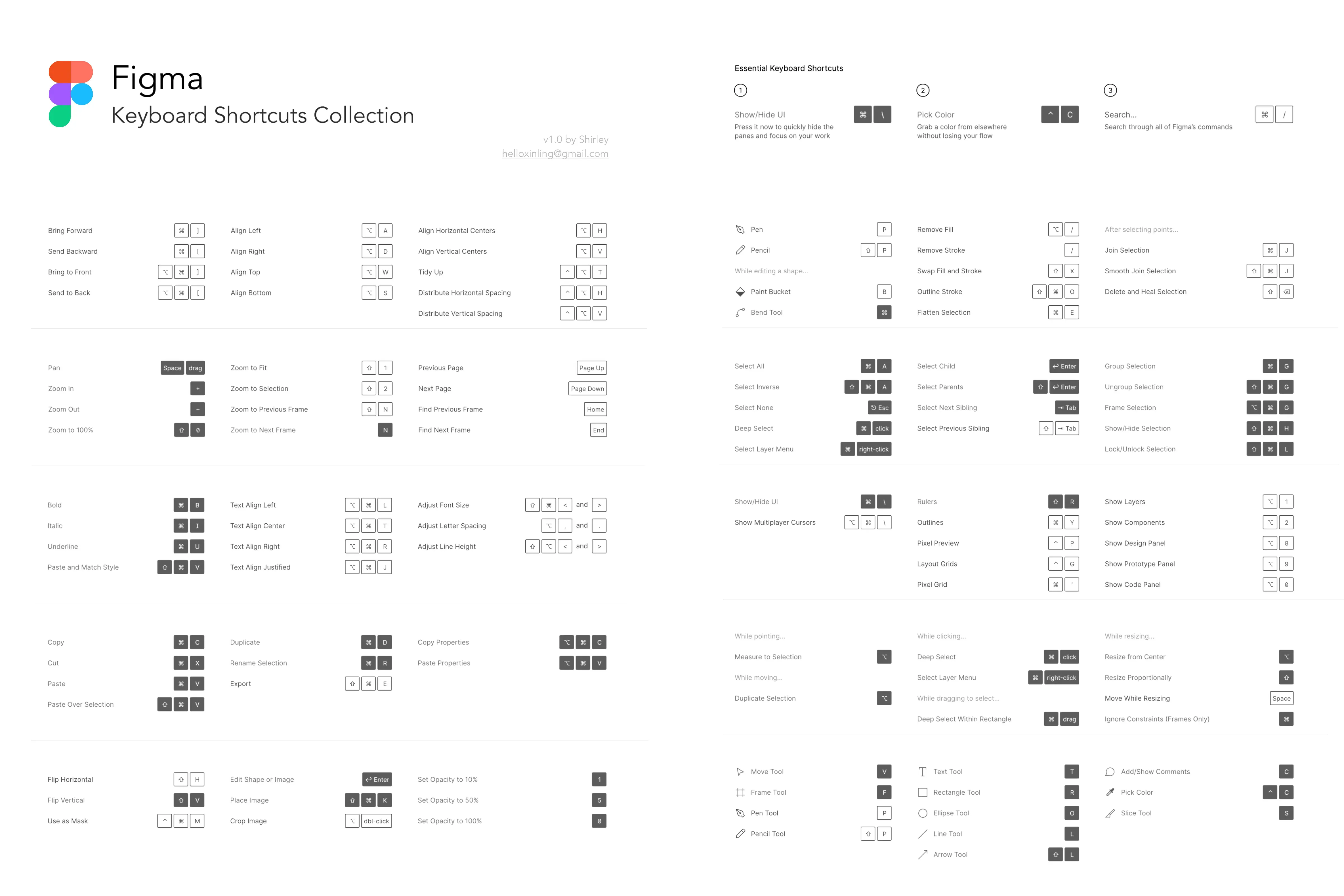
The four levels of keyboard support
Good products design for all of them. Others get to a basic Level 3 and hope for the best. And some do nothing.
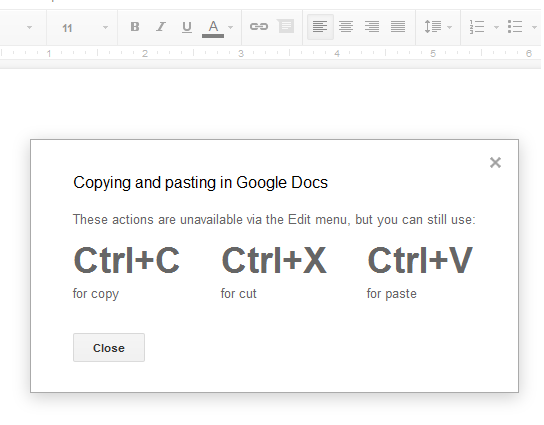
Level 1 - Basics: Cmd/Ctrl+C, V, Z, S. These are muscle memory. Non-negotiable.
Level 2 - Navigation: Tab through fields. Enter to confirm. Escape to dismiss. This is where accessibility begins, and where most products quietly fall apart.
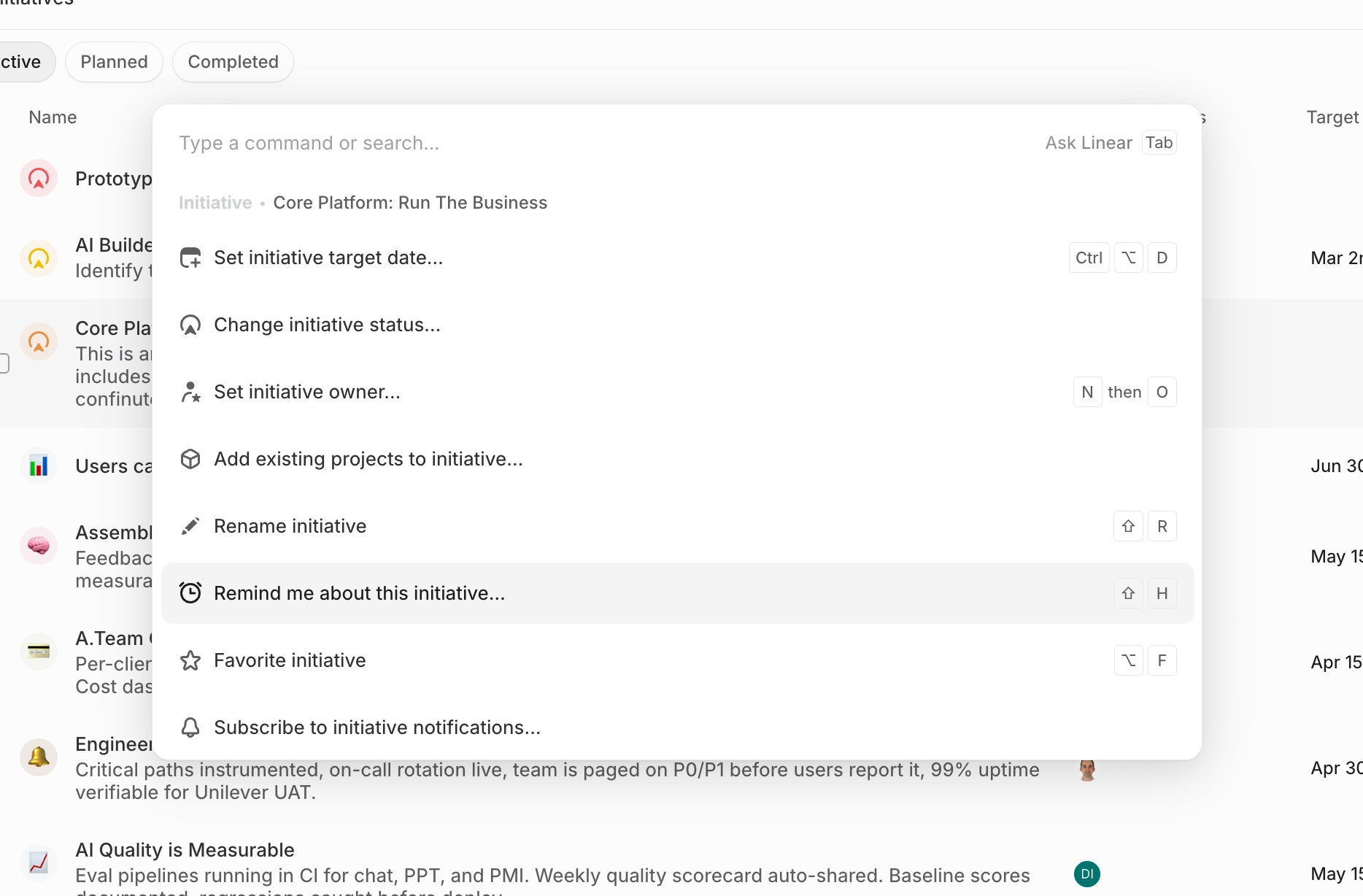
Level 3 - Action shortcuts: Cmd+K command palette. / to search. Cmd+Enter to submit. Power users will find these and never let go.
Level 4 - Expert mode: Custom keybindings, multi-key sequences, vim-style nav. If users live in your product, they want this.
The standards. Don’t fight them.
Users arrive pre-loaded with platform conventions. Override them and you break muscle memory.
Save — Cmd+S (macOS) / Ctrl+S (Windows)
Undo — Cmd+Z (macOS) / Ctrl+Z (Windows)
Find — Cmd+F (macOS) / Ctrl+F (Windows)
Select All — Cmd+A (macOS) / Ctrl+A (Windows)
Close / Cancel — Esc (macOS) / Esc (Windows)
Submit — Cmd+Enter (macOS) / Ctrl+Enter (Windows)
Command palette — Cmd+K (macOS) / Ctrl+K (Windows)
Build custom shortcuts for actions that don’t have conventions. Leave the standard slots alone.
The two keyboard failures that will haunt you
Focus traps. Keyboard gets stuck inside a modal and can’t escape. The user is literally locked in.
Invisible focus states. Someone typed outline: none and never replaced it. The user is navigating blind.

LLM Prompt
You are an expert UX designer and accessibility auditor specializing in keyboard interaction. Audit the attached screenshot(s) of my product against four areas:
1. ACCESSIBILITY BASELINE — Can every interactive element be reached and triggered by keyboard alone? Are there focus traps? Is the focus state always visible?
2. PLATFORM CONVENTIONS — Are Cmd/Ctrl+S, Z, C, V, F, A, Enter, Esc, and Tab mapped correctly? Flag any standard slot used for a non-standard action.
3. POWER USER EFFICIENCY — Identify the 3–5 highest-frequency actions. Does each have a shortcut? Is there a command palette (Cmd+K)?
4. DISCOVERABILITY — How would a user learn shortcuts exist? Is there a `?` reference, tooltip hints, or a self-documenting palette?
For each area, flag specific gaps and recommend concrete fixes. Rank the top 3 fixes by impact on accessibility compliance, task completion, or power-user retention.
End with a one-paragraph verdict: could a keyboard-only user complete the core workflow today? Would a power user feel rewarded for learning your product, or punished?
Ask me up to 3 clarifying questions before starting.

Why Should I Care?
Keyboard accessibility serves both users with motor disabilities and developers who live on their keyboards, and power users who never touch the trackpad.
For your best users: shortcuts keep them in flow. Every forced mouse interaction is a context switch. They add up.

Use this today
Can you complete every core task with keyboard only?
Is the focus state always visible? Any focus traps?
Do your shortcuts match platform conventions?
Does
?open a shortcut reference?What’s your highest-frequency action? Does it have a shortcut?

About Us
Design Language is a newsletter for all product builders (PMs, Engineers, Founders, etc) who want to improve their design literacy, hone their sense of tase, and improve their craft when building products.
Jeremy Belcher is a 15 year product and design veteran. He has designed UX/UI for products used by tens of millions for brands like Google, Salesforce, Saturday Night Live, DirecTV, BMW, Emirates, Visa and in the past several years has focused on new enterprise workflow products. He runs the product studio Robot Heart, which designs, builds, and validates 0 → 1 B2B workflow tools for teams and founders.
David Issa is a digital strategy and product design leader with over 15 years of experience guiding companies through transformation. He has helped scale products and teams across healthcare, fintech, and enterprise software, translating complex systems into human-centered experiences. David runs a strategic design practice focused on aligning purpose, architecture, and execution—bridging design, AI, and organizational strategy to help teams build with clarity and intent.